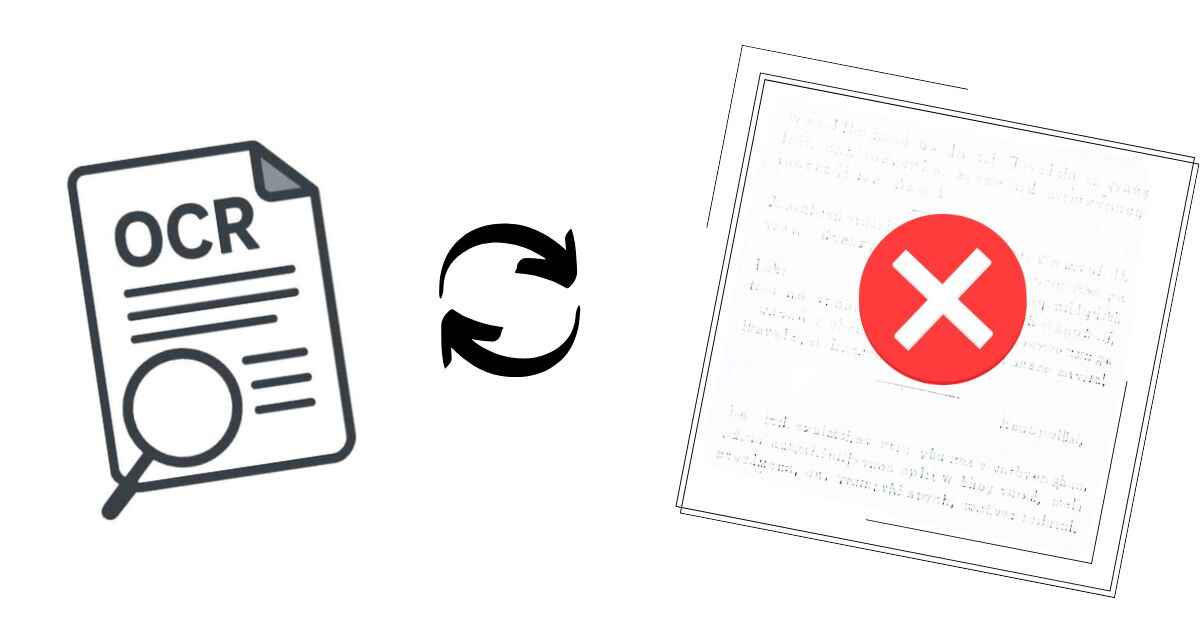
Even the most advanced OCR systems — from Google Vision to Tesseract — are not perfect. They can misread characters, skip lines, or produce jumbled text. These issues, known as OCR errors, often arise from poor image quality, complex fonts, or formatting inconsistencies.
In this guide, we’ll break down the most common OCR errors, why they occur, and how to fix them — so you can achieve near-perfect text recognition accuracy.
What Are OCR Errors?
OCR (Optical Character Recognition) converts printed or handwritten text into machine-readable form.
However, during this process, the system can make recognition mistakes — especially when the source file isn’t clean or properly formatted.
Typical examples:
- “O” misread as “0” (zero)
- “l” mistaken for “1”
- Words merged or broken apart incorrectly
- Missing punctuation or symbols
Even minor issues can make extracted text unusable for automation or data analysis — making error correction critical.
Common Causes of OCR Errors
Let’s look at the most frequent reasons why OCR results go wrong:
a. Poor Image Quality
Low resolution, blur, and shadows reduce OCR accuracy.
Fix:
Use at least 300 DPI resolution. Bright, high-contrast scans produce better results.
b. Compression Artifacts
Over-compressed images (like JPGs) lose detail around letters.
Fix:
Prefer PNG, TIFF, or PDF formats for OCR.
👉 Learn more in Best File Formats for OCR.
c. Handwritten or Cursive Text
Handwriting varies by person, so OCR engines struggle with it.
Fix:
Use a handwriting OCR AI model trained specifically for scripts. Tools covered in Handwriting to Text AI perform much better here.
d. Unusual Fonts or Decorative Text
Stylized fonts reduce pattern recognition accuracy.
Fix:
Preprocess text with binarization and character segmentation to simplify shapes.
e. Skewed or Rotated Images
OCR assumes text lines are horizontal. Skew distorts detection.
Fix:
Apply deskewing algorithms or use tools that auto-correct image rotation.
f. Mixed Languages
When multiple languages appear on one page, OCR may confuse character sets.
Fix:
Select the correct language model before scanning — e.g., English + French.
Types of OCR Errors
OCR errors generally fall into these categories:
| Error Type | Example | Description |
|---|---|---|
| Substitution Error | “O” → “0” | Character misread |
| Insertion Error | “Th3e” | Extra characters added |
| Deletion Error | “Tis” instead of “This” | Missing letters or symbols |
| Segmentation Error | “lookslike” → “looks like” | Incorrect word boundaries |
| Layout Error | Table columns jumbled | Misalignment or lost structure |
Each type requires a different correction approach.
How to Fix OCR Errors
Here’s a step-by-step process to correct and prevent OCR issues:
Step 1: Preprocess the Image
- Use noise reduction filters.
- Convert to grayscale or binary.
- Deskew and crop unnecessary margins.
- Apply contrast enhancement.
Pro tip: Before running OCR, convert scanned documents using Image to PDF Converter for better alignment and text structure.
Step 2: Choose the Right OCR Engine
Different OCR engines have different strengths:
- Tesseract → Great for structured documents
- Google Vision → Best for images with natural backgrounds
- Azure OCR → Reliable for printed multi-language files
You can explore more comparisons in Tesseract vs Google Vision vs Azure OCR.
Step 3: Use Post-OCR Correction
After extraction, use algorithms or scripts to correct text:
- Spell checking (using dictionaries)
- Regex correction (for predictable patterns like dates, numbers, or names)
- AI-based re-ranking (context-aware correction using language models)
Step 4: Apply Human Validation
For critical documents (e.g., legal or financial data), have humans review OCR output.
Hybrid systems (AI + human check) can reach >99% accuracy.
Automating OCR Error Fixes
Modern OCR workflows often integrate automation tools:
- Batch Preprocessing: Clean hundreds of images before OCR.
- Post-OCR Cleanup Scripts: Automatically fix repeated recognition patterns.
- Confidence Scoring: Filter out low-confidence text blocks for manual review.
For example, Google Vision API and Azure AI Vision provide confidence scores for each character — helping identify error-prone regions automatically.
Measuring and Reducing OCR Error Rate
OCR accuracy is usually measured using metrics like Character Error Rate (CER) or Word Error Rate (WER), which quantify recognition accuracy.
For researchers and developers, the NIST OCR Test Dataset by the U.S. National Institute of Standards and Technology offers standardized benchmark data for evaluating OCR engines under real-world conditions.
Formula:
The Character Error Rate (CER) is determined by dividing the total number of substitutions, insertions, and deletions by the overall number of characters in the text.
Goal:
Keep CER < 1% for high-quality scans, and < 5% for handwritten or low-quality images.
Tools That Help Fix OCR Errors Automatically
| Tool | Strength | Type |
|---|---|---|
| Tesseract + Scripts | Custom post-correction | Open-source |
| Google Vision | Confidence scoring | Cloud-based |
| ABBYY FineReader | Built-in correction | Paid desktop |
| ImagetoTexts OCR Tools | Quick image-to-text + converters | Online free |
Best Practices to Avoid OCR Errors
- Scan at 300 DPI or higher.
- Use monochrome or grayscale instead of color.
- Avoid fancy fonts or handwritten notes unless using handwriting OCR.
- Keep consistent margins and alignment.
- Convert complex documents into PDF before OCR for layout preservation.
Check out Improve OCR Accuracy for detailed optimization steps.
Conclusion
OCR errors are inevitable — but not unfixable.
By understanding their causes and applying the right preprocessing, engine choice, and correction steps, you can reduce errors dramatically.
Remember:
The cleaner your input, the smarter your OCR output.
Whether you’re digitizing handwritten notes or scanned PDFs, consistent file preparation and intelligent correction will ensure accurate text recognition every time.

Leave a Reply