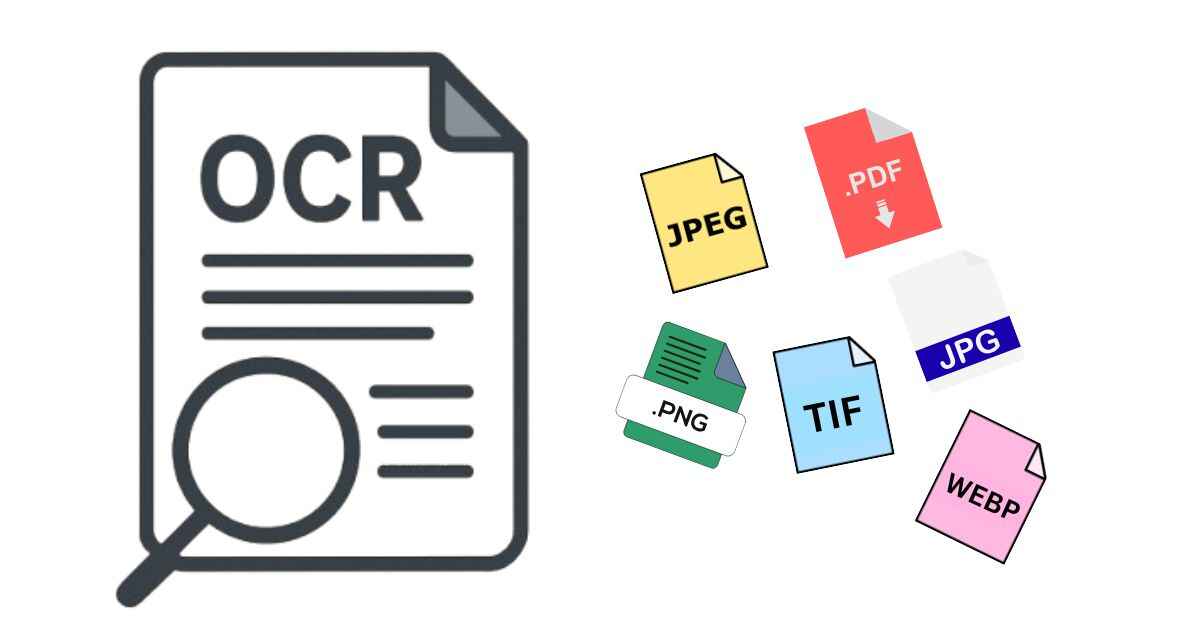
When it comes to Optical Character Recognition (OCR), not all file formats are equal. The format you choose can drastically affect text detection accuracy, speed, and even the final output quality.
So, which is the best file format for OCR — JPG, PNG, TIFF, or PDF? Let’s break it down and see how each one performs.
1. JPG (JPEG) – The Most Common but Not Always the Best
JPG is the most widely used image format — compact, lightweight, and compatible everywhere. However, its compression often introduces noise and blurring, which can confuse OCR software.
✅ Pros:
- Small file size, fast upload
- Works with nearly every OCR tool
- Easy to share and store
❌ Cons:
- Loses quality due to compression
- Blurry or pixelated text reduces OCR accuracy
Best Use Case:
Quick scans or screenshots where file size matters more than precision.
If your file is already in PDF, you can easily convert it to JPG using our PDF to JPG Converter before running OCR.
2. PNG – Crisp Text, Excellent for OCR
PNG files use lossless compression, meaning they retain every pixel detail — ideal for OCR. Text edges remain sharp, even at high zoom levels, which makes it easier for OCR engines to read.
✅ Pros:
- High clarity and no compression loss
- Best for screenshots, graphics, and scanned documents with text
- Maintains background transparency
❌ Cons:
- Larger file size than JPG
- Not ideal for bulk document storage
Best Use Case:
Images with printed or computer-generated text, where you need precision and readability.
3. TIFF – Professional-Grade OCR Format
TIFF (Tagged Image File Format) is the industry standard for high-quality scanning and document archiving. Many OCR engines — including ABBYY FineReader and Tesseract — recognize TIFF as a preferred input.
✅ Pros:
- Lossless, high-resolution format
- Multi-page support (one file = multiple scans)
- Excellent for complex documents
❌ Cons:
- Very large file size
- Not easily shareable on the web
Best Use Case:
Official document scanning, business archives, or batch OCR projects that prioritize accuracy over storage size.
4. PDF – The Smart Choice for Multi-Page OCR
PDF (especially searchable or scanned PDFs) is a favorite for OCR processing. It preserves layout, fonts, and structure — perfect for extracting text from reports, invoices, or eBooks.
Modern OCR tools can even process image-based PDFs by detecting and extracting embedded text.
✅ Pros:
- Keeps text layout and formatting
- Supports multi-page documents
- Works well with hybrid OCR (text + image layers)
❌ Cons:
- Large files may slow down processing
- Some tools struggle with scanned PDFs unless preprocessed
If your files are images, you can use the Image to PDF Converter to create a clean, OCR-ready PDF in seconds.
Summary: OCR File Format Comparison
| Format | Compression | OCR Accuracy | File Size | Multi-Page Support | Best For |
|---|---|---|---|---|---|
| JPG | Lossy | Medium | Small | ❌ | Quick images |
| PNG | Lossless | High | Medium | ❌ | Screenshots, clean scans |
| TIFF | Lossless | Very High | Large | ✅ | Archiving, professional OCR |
| Mixed | Very High | Medium–Large | ✅ | Multi-page, layout-preserved files |
So, What’s the Best File Format for OCR?
If you’re after maximum accuracy, TIFF and PDF are your best bets.
For a good balance between quality and size, PNG is excellent.
JPG remains practical for casual use but isn’t ideal for critical OCR tasks. For enterprise-grade OCR, cloud solutions like Google Cloud Vision API can process PDFs, TIFFs, and PNGs with high accuracy.
In short:
- Best Overall OCR Format: PDF
- Highest Accuracy Format: TIFF
- Best Everyday Format: PNG
- Quick Use Format: JPG
Pro Tip: Convert Before You OCR
Sometimes the secret to better OCR isn’t the tool — it’s the file preparation.
- Got an image? → Turn it into a PDF using the Image to PDF Converter.
- Got a scanned PDF? → Convert it into high-quality images with the PDF to JPG Converter.
Proper format conversion can boost OCR accuracy by up to 30%, especially when dealing with text-heavy or blurry documents.
Final Thoughts
Choosing the right file format for OCR depends on your goal.
For quick conversions, JPG and PNG do the job.
For professional-grade accuracy and structure retention, PDF and TIFF lead the way.
Always remember — clean input = better OCR results.
Leave a Reply